Restoring the State of your Form
This is a guest post from my colleague Anatole Matveief who works on XFA-related features in Acrobat. In this post, Anatole introduces a really cool feature available since Acrobat 8.0 and Designer 8.0 called “formstate” which allows you to persist non-data related changes to your forms and restore them when the form is subsequently re-opened.
Minimum requirements (to use the forms in this tutorial): Acrobat Standard 8.0, Designer 8.0
FormState
In Acrobat and Designer 8, Adobe introduced the concept of saving a form’s state in XFA Forms. First a quick review: An XFA Form file usually contains a template and data. When the form is opened, the template instructs the runtime engine (like Acrobat, Reader or the server) how to create the Form DOM given a set of data. The user can then interact with the form. After the user fills the form, Reader or Acrobat will save the data. When the form is then reopened, Acrobat or Reader will take the saved data and once again do the merge to create the form.
However, many customers encountered a problem: They wanted to save or persist an element of the form that was not bound to the data. For example maybe in the process of filling the form, some captions changed, or the color of fields changed. Or maybe the number of instances in an unbound subform changed. Since these changes were not bound to data they would not be restored the next time the form was opened, since only the data was saved.
In Acrobat 8 this changed. Now by default, the state of the form, or its formstate is saved. This means that all those changes in the form that happened at runtime that weren’t bound to data will be restored next time the form is opened.
Automatic State Restoration
As an example, open formstate-auto.pdf in Acrobat. Click on the “Change Country” button once or twice, which runs a script to change numerous properties on the form to make it into a US form or Canadian form. These include colors, captions, and the number of instances in a subform, values, and the items in a list. Now save the file. When you open the form again, the captions, colors number of instances, unbound field values, and list items will be as they were when you saved. This would not be the case prior to Acrobat 8.
Here is the setting in Designer 8.0 that controls this automatic form state saving:
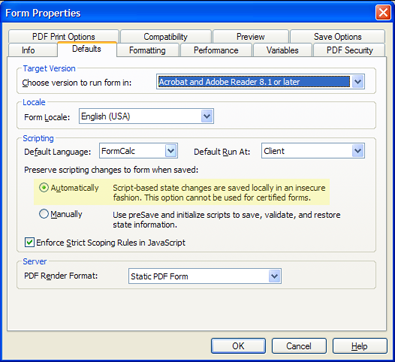
In the XFA Language it’s the property in the root subform called “restoreState”. The default value is:
restoreState="auto"Now, as with most good things in life, it’s not quite so simple. Now that form state is restored, we open up a potential security issue. What if someone gets your form, changes a caption from “Address” to “Password”, then changes another caption to read “SSN”? When they save the file, the next time your intended customer opens the file they’ll see the spoofed captions, not the captions the original author intended! That is, the author’s intent has been compromised. So how do we get around this issue?
Manual State Restoration
There is now also the option to restore formstate manually, specified in the XFA Language on the root subform as:
restoreState="manual"Or in Designer by selecting the second radio as shown here:
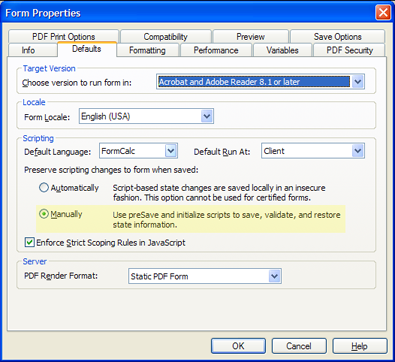
What does this mean? This means that the form author decides, through script, what parts of the form will be restored when the file is reopened. In fact, for certified forms, this is the only way to restore form state. Certifying an XFA Form is disallowed if the formstate’s restoreState is set to “auto”. (If for some reason the form does get certified, by a previous version of a product that doesn’t enforce this rule for example, Reader or Acrobat will not restore the formstate on open.) First let’s see an example using a form with restoreState=”manual”.
Open the file formstate-manual-noscript.pdf. Click the “Change Country” button once or twice, save, close and reopen the file. Notice that only values are restored. The properties changed by script are not. The exception to this rule are the unbound field values and the number of subform instances, as shown on the form. This means that even for restoreState=”manual”, unbound field values (where bind=”none”) and subform instances are restored.
So what do you do if you want to manually restore the form state? Thankfully, there is a simplified method to doing this by using script.
Open the file formstate-manual-script.pdf. Follow the same steps as before. When you reopen the file you’ll see that the entire state is restored. This is accomplished by placing this script on the Form:Ready event of the root subform:
// this script restores all the deltas manually.
var oList = this.getDeltas();
for (i=0; i < oList.length; i++)
{
    var oDelta = oList.item(i);
    oDelta.restore();
}
You can also be more selective about which fields, and even which properties within those fields you restore.
Open the file formstate-manual-script-partial.pdf. Follow the same steps as before. When you reopen the file you’ll see that only parts of the state are restored. This is accomplished by placing different scripts on different fields, and by not placing some scripts at all. For instance the form places the following script on the listbox to restore only the list items (it does not restore the color):
// this script restores the delta for the "items" (in XFA,
//  it's the <items> element) property of this listbox only.
// Ie the color is not restored but the items in the list are.

var oListDelta = this.getDelta("items");
oListDelta.restore();
You can use a similar script to restore only certain attributes of the field.
Technical Note: One important point here is that the script runs on the opening of the form when the formstate is being restored. The entire state of the form is always saved when the file is saved. But Acrobat/Reader will always check the script to restore only the parts of the form state that are specified. Why isn’t there a script to choose what part of the formstate to save? That wouldn’t be secure: A malicious person could intercept the form in transit, and inject additional information in the formstate before it reached its target. However if the script runs when the form is opened and state restored, then the script will ignore any section the author did not intend to be restored. Of course the security assurance works only if the form is certified, since certification ensures the integrity of the template, where the formstate restore script (which you implement) lives. Ie, the script which does the state restoration is covered by the certification, so we can be sure the script wasn’t tampered with.
Summary
The new formstate feature:
- allows saving state in the form where that state is not bound to data — which is a good thing since you don’t necessarily want to “mess up” your data, which may need to comply to an XML schema, with formstate-related information.
- has an automatic mode which just restores the entire state from the last time the file was saved.
- has a manual restore mode, for added security. This manual mode:
- is required if you plan on certifying your form
- is made easier by the use of deltas
- allows you to pick and choose exactly what parts of the formstate to restore.
Posted by Stefan Cameron on September 29th, 2008
Filed under Acrobat,Designer,Scripting,Tutorials,XFA
Both comments and pings are currently closed.

thanks very much for this! It happened to be the EXACT problem i was looking to solve when i cam to your site, and it was on the front page, no less. thank you again.
Jody,
You’re very welcome. I’m glad you found it useful!
Thanks! This article solve a problem I had. I’m a newbie in livecycle, and I found your blog really useful!
This is wonderful article, which I am just discovering now and it has really helped me adjust some parts of my form that were not being restored when the form reopens.
Thank you
Hi Stefan,
Now I have come across a problem trying to restore a hidden on the master page of my dynamic form.
Here is the scenario:
I have on the master page of my form a hidden field, which gets visible when a check is on as desired by the form user. It shows works properly. After I fill the entire form, save it and close. When I re-open the same form only the fields on subform1 are restored and not those on the master page.
How can I fix this problem?
Hi Stefan,
Please help me with the below request. I am getting desperate.
I am trying to do two things with a flowed form that I have.
1) On a flowed form can I force to position a field in particular place at runtime?
2) Is there a way to exclude an object placed on the master from being remerged or reset? I have a form with a data field on the master page, which gets reset every time the form reloads causing the said field to loose its data.
E. Loralon,
I looks like you asked the same question to John Brinkman and he has replied.
Thank you very much Stefan,
I was eagerly waiting for this answer.
I am distibuting form via adobe.com collection method. the states are lost when doing that – I even tried it with your sample. They are maintained if I save the form as you suggest. Any ideas?
Les falke,
I believe this only works if you retain the PDF that was saved with the state information. If you get XML data submissions from a distributed PDF, the XML data will not contain the state information.
Les falke, unfortunately the Acrobat.com workflow collection method always submits the XML data for XFA Forms, unless the form is signed, in which case it will submit the XML. As such, the only way to maintain the form would be to push the extra information into the XML data. If you do the collecting via email that should maintain the formstate since that would submit the entire PDF.
Hi Stefan,
I am having trouble preserving script changes to the visibility of fields and changes in caption colour.
I have tried auto and manual/delta; yet when I save and reopen some of the changes have been saved/restored, however most have not.
All of the script changes are called from a script object in the root variables. Do you think this could be affecting the behaviour?
Thanks,
Niall
Hi Stefan,
Sorted!!
Thanks,
N.
Niall O’Donovan,
Great! Thanks for letting me know.
Unfortunately I have the exact opposite as a problem.
I have a data connection established with my form. When the user begins he enters either his/her name or company ID. The form takes this value and uses it in a select statement to populate the employee info.
When the field is saved in reader after being filled out and opened again, it loses all data connection field values. Oddly enough the only one that comes back is an unbound field. It still works if saved/open in Adobe Pro. I tried saving my form with reader rights, and it still didn’t correct my issue.
Really wish I knew what to look for.
PS your site has helped me along with many issues. Thx.
Josh
Josh,
I’m glad to know my site had helped you out!
Using Acrobat Pro to extend PDFs for use in Reader will not enable Reader to import data. Importing data is different from enabling local save (though the two are often confused)…
Thanks for the link. Unfortunately I didn’t realize I have been doing ALL my testing in Adobe Pro. I have been working to make everyone’s lives easier by importing employee data into a form and auto-populating. It’s been a long haul getting all this scripting, etc to work, and now I’ve realized that it won’t even work in Adobe Reader. I have a rotten feeling in my gut lol.
Hi Stefan,
I’m struggling to find the answer to a question on interactive forms.
We have LiveCycle ES. Now from the organization’s portal, the user invokes the adobe interactive form by clicking a link. ( I will call .Net APIs for this) He needs to fill the form and submit it online. Here while filling the form, user wants to enter the account number on the form. And he needs to check validity from the database whether this account number exists or not before submitting the whole form.
How can I do that? One way should be calling a webservice from the form. Do we have any other ways so that the form checks from the database?
It would be a great help if you can give some solution to this.
Thanks,
Krishna
krishna,
Connecting the form to a web service would be the ideal solution since it’s more secure than exposing the database however you can connect the form to a database as well.
If you use a web service, then you could have a method that returns true/false if the account exists (you can check the response from a web service like this).
If you use the database directly, you could have one of the data connections (you can have multiple ODBC data connections in a single form) that queries the database and sets the value of a hidden field to true/false depending on the result, indicating whether the account exists or not. (The link I provided above for databases shows how to change the SQL statement at runtime in order to execute a query based on user data).
Note that, in either case, this will only work in Acrobat unless you enable data import rights on the PDF for use in the free Reader.